Mom, Dad, Ava, Grandma, Ben — and nobody else

Family circle app — the people you love, on one private map.

A circle is your family’s own map: the people you invite, seen only by each other. Grandma joins with just her name — no app, no account. Start a second circle for the grandparents or the road trip when life asks for one.

One plan, up to 10 people·Cancel in one tap

App Store·Google Play·or any browser
9:41
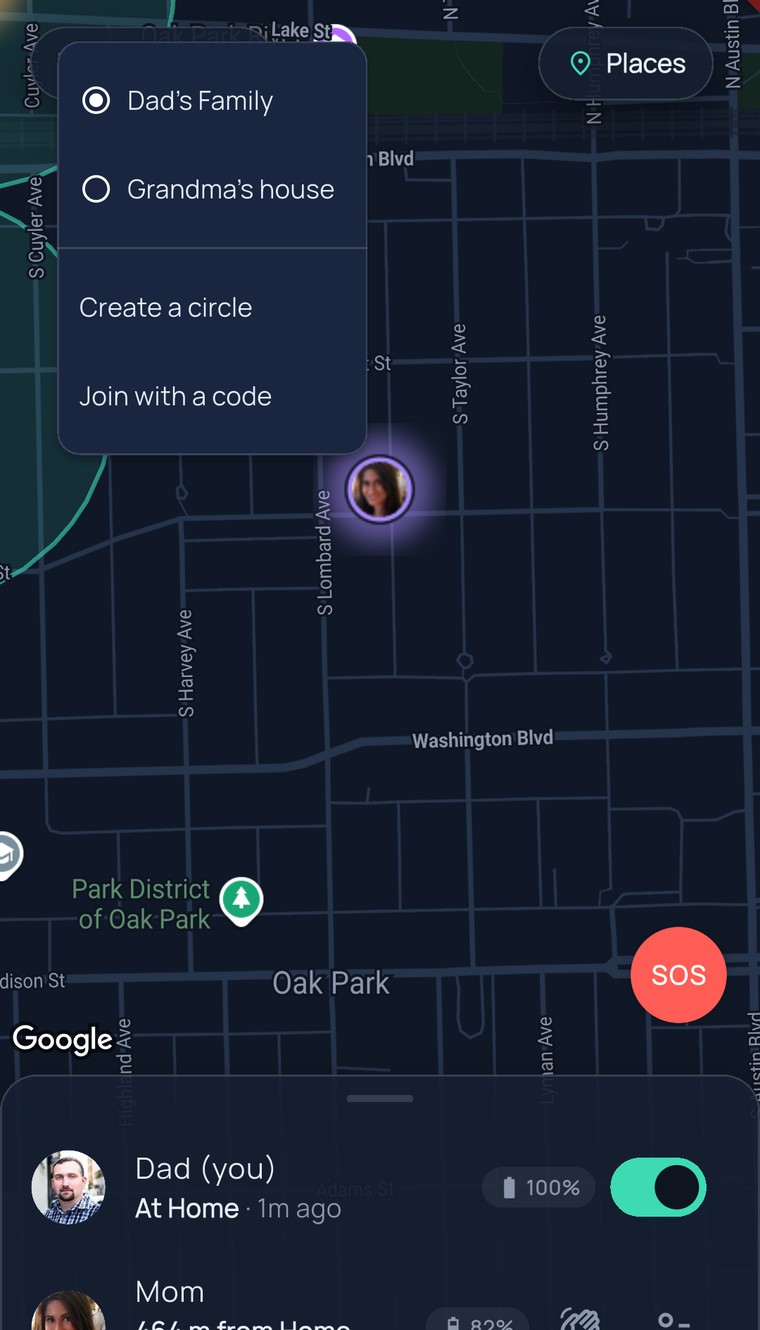
The FamilySeen map with the circle menu open — Dad’s Family selected, Grandma’s house below it, plus “Create a circle” and “Join with a code”
Sunday, 9:02 AM

Five people, one circle, before the coffee got cold.

Dad wants the whole family on the map before the week starts. Mom has an iPhone, Ava has whatever teenagers have this year, Grandma has a tablet from 2019. Everyone’s in by the second cup.

Five names on one map. Nobody outside it can see a thing.

  1. Dad names it “Dad’s Family” and types Mom’s number. Messages opens with the invite already written — he hits send.One person starts the circle. That person is the owner.Dad added you to our family map — tap to join. familyseen.com/…

  2. Mom’s on the map. Ava and Ben, across the table, scan the code off Dad’s screen — “Join as Ava.” “Join as Ben.” Two taps each, zero eye-rolls.Ava had the app in a minute. Ben and Mom never installed anything. Same map.

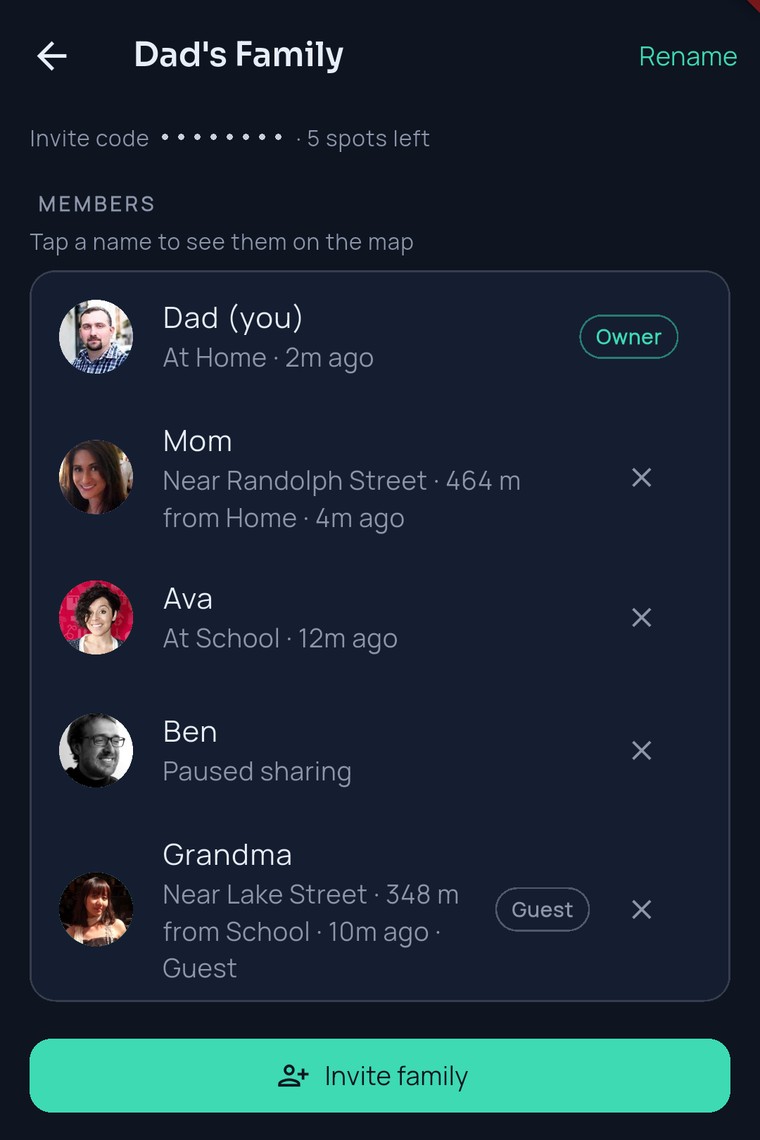
  3. Grandma opens the invite on her tablet, types “Grandma,” and there she is — “Near Lake Street · Just now.” No password, nothing to download.Dad’s map: Dad, Mom, Ava, Ben, Grandma. Five dots. One family.

How it works

Name it. Invite them. Done.

One person starts the circle; everyone else just says yes. Invite whoever’s easiest to reach first — the rest follow.

Start a circle

Give it a name — “Dad’s Family,” “The Nguyens,” “Road trip” — and you’re the owner. One person sets it up; nobody else has to set up anything.

Invite whichever way’s easiest

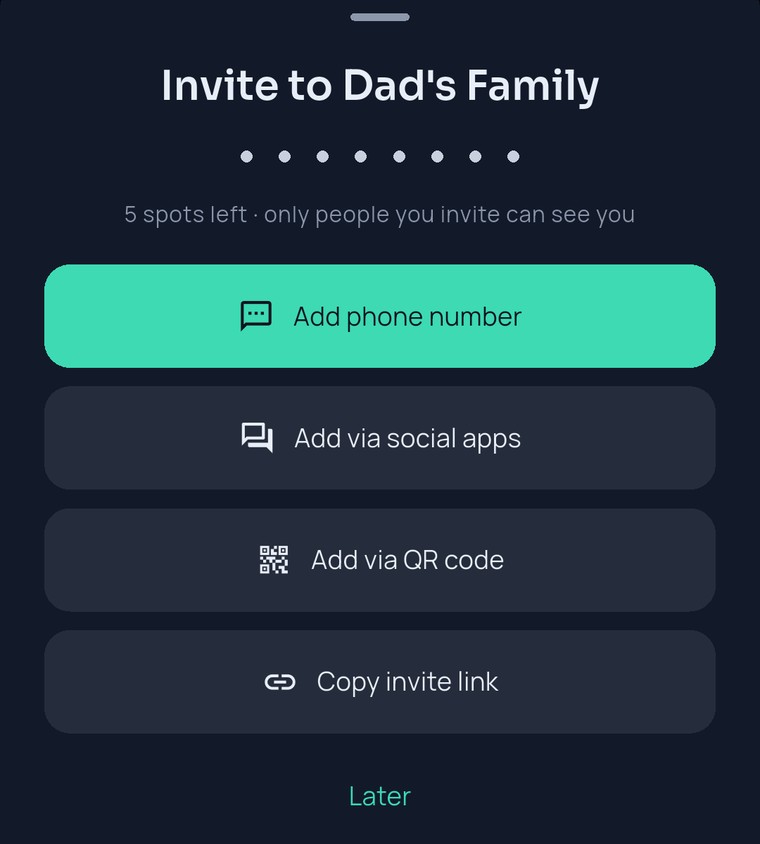
Type a phone number and Messages opens with the invite ready — you hit send. Show a code they scan across the table. Paste the invite into the family group chat. Anyone in the circle can invite; only people in the circle can see you.

They join with just a name

Grandma taps, types “Grandma,” and she’s on the map. No app to install, no account, no password. Want the app? It’s there — everything stays in sync either way.

9:41
The FamilySeen circle screen — Dad’s Family with members, the Invite family button, and owner-only controls like Create a new code
What’s different about a circle

Small on purpose. Private by design.

Only your circle can see you

The circle is the whole list. If they’re not in it, they don’t see a dot, a street name, or a name. Not friends of friends. Not advertisers. Nobody.

One owner, one door

Whoever starts the circle holds the key: rename it, remove someone, and hand out a fresh invite any time — the old one stops working that second. Everyone else just shares and sees.

Everyone sees the same map

There’s no parent view or kid view. Ava sees Dad exactly as Dad sees Ava. Sharing is a switch each person flips for themselves — and a pause shows honestly as “Paused sharing.”

Room for the real family

Kids, parents, grandparents, the nanny — six people on Free, up to 10 on Premium, and more circles when life needs them: one for the grandparents, one for the trip. Switch with a tap on the circle name.

9:41
The FamilySeen invite sheet — Invite to Dad’s Family, 5 spots left, only people you invite can see you, with Add phone number, social apps, QR code and copy options
Free: one circle, up to 6 peopleStart the family circle, invite five, see each other. Nothing to pay, no card needed.
Premium: up to 10, and more circlesGrow to 10 in a circle and start another — grandparents, the road trip, the sitter. $9.99/mo or $79.99/yr.
One person paysOne subscription covers everyone in the circle. Whoever you invite joins free — app or no app.
Invite once, it keeps workingSend it today; Grandma can tap it next week. Only the owner can switch it off — and then the old one stops, instantly.
Questions, answered straight

Family circle app — what parents ask

How do I create a family circle that only my family can see?
Open FamilySeen, tap “Create a circle,” give it a name — that’s it, you’re the owner. Invite people by phone number, with a code they scan, or by pasting the invite wherever your family already chats. Only people you invite can see the circle, and each person turns their own sharing on. A family circle app should be exactly this small: the people you named, and nobody else.
Does Grandma need an account?
No. She opens the invite in any browser, types “Grandma,” and she’s on the map — no app, no password, nothing to install. If she’d like to keep her spot on a second device later, she can add an email then. Everyone in the family location app sees her the same way they see each other.
Can I be in more than one circle?
Yes. Join as many as you’re invited to, and switch with one tap on the circle name at the top of the map. Each circle is its own private map: people in one never see people in another. The free plan includes one circle of your own; Premium lets you start more.
How do I remove someone, or stop an invite that went too far?
Owners can remove any member from the circle screen — they stop seeing the circle and the circle stops seeing them; they can only come back with the code. If an invite reached further than you meant, tap “Create a new code” and the old one stops working that instant. And everyone but the owner can leave a circle themselves, any time.
Around your circle
FamilySeen

Everyone home safe. Starting tonight.

7-day money-back guarantee · Cancel anytime · SOS free forever

Start on any device — everything stays in sync